

Steps to access the Windows Server Core through Remote Desktop
In this blog, We will show you the Steps to access the Windows Server Core through Remote Desktop
OVERVIEW
- We have already installed windows server core in Hyper-V Environment.
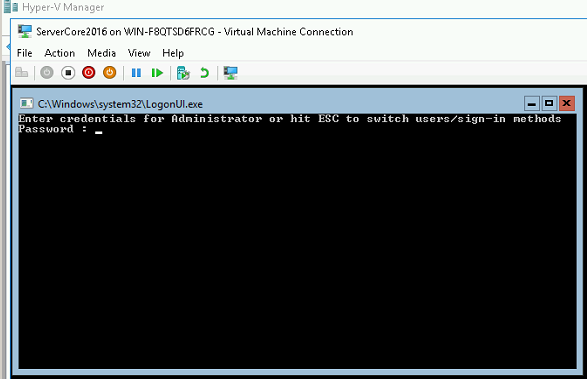
“Note: We are using Windows 2016 Data Center core edition for this demo
ENABLE THE REMOTE DESKTOP ACCESS
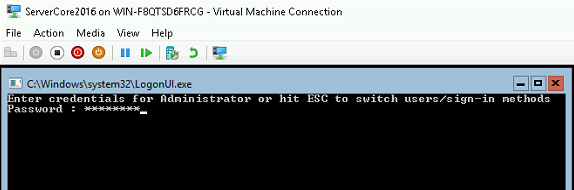
- Login into server core machine using the administrator credentials.
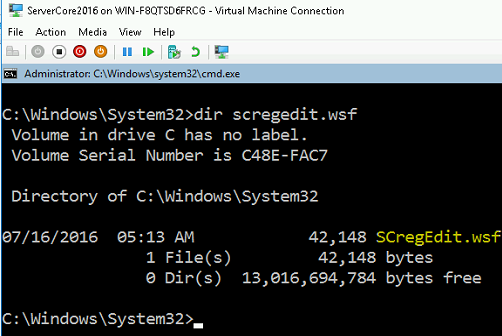
- By default, Remote Desktop Connection access will be in disabled mode. We can use the in-built Scregedit.wsf to enable the RDP connections on Server Core. This script will be available under %windir%\system32 folder.
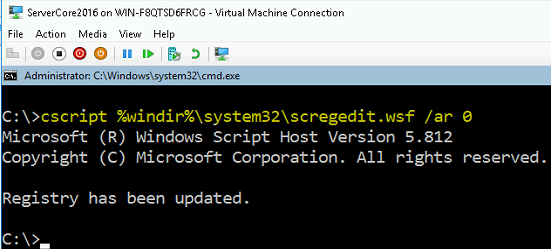
- Execute the script to disable the fDenyTSConnections registry value.
cscript %windir%\system32\scregedit.wsf /ar 0
- You can verify the registry entry using the below command.
cscript %windir%\system32\scregedit.wsf /ar /v
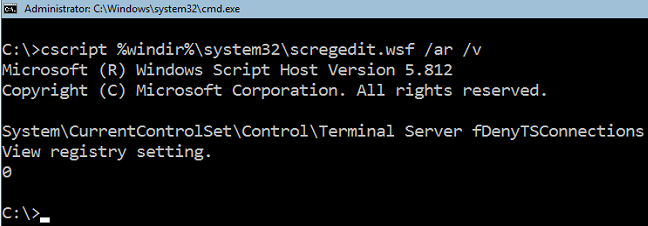
- Now the server core is ready to access through Remote Desktop.
ACCESSING THROUGH DESKTOP
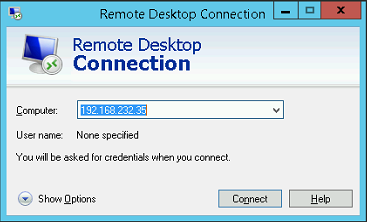
- Open the Remote Desktop connection and provide the server core IP and click Connect.
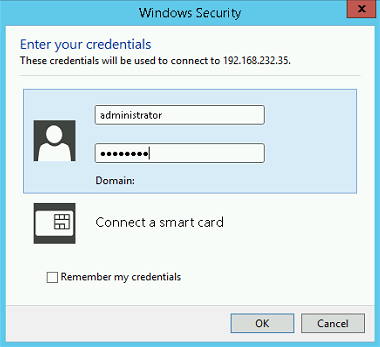
- Provide the administrator credentials and click OK.
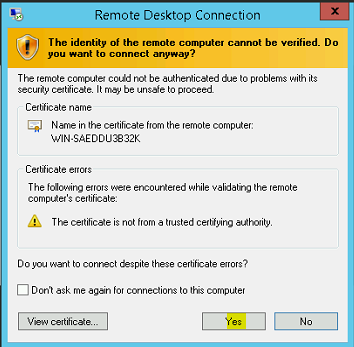
- Click Yes to ignore the certificate Warning.
- We are able to access the server core through RDP successfully.
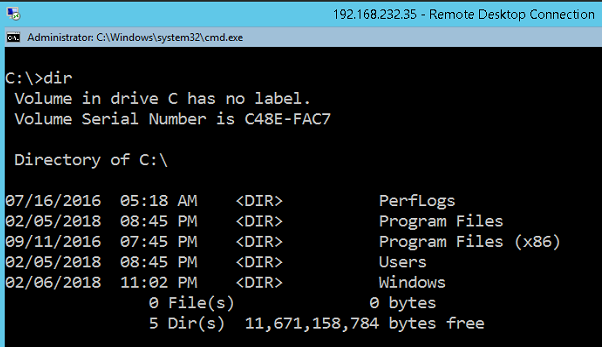
OPENING A NEW COMMAND PROMPT CONSOLE
- If you close the command prompt window in the server core, Press CTRL+ALT+END Key. It will open a new window.
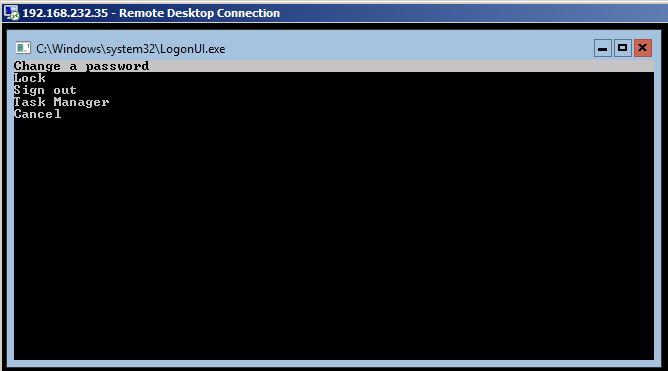
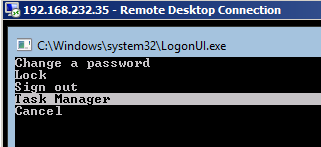
- Select the Task Manager option and press Enter.
- Click on More details option.
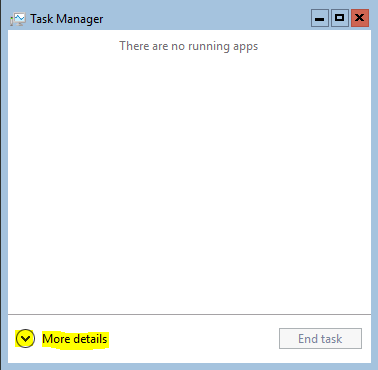
- Click on the File menu and select Run new task option.

- Type cmd.exe and Click OK.
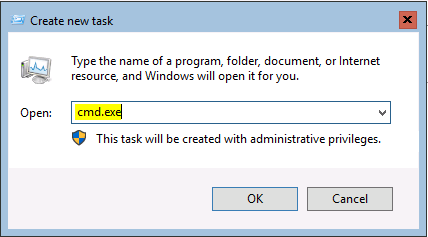
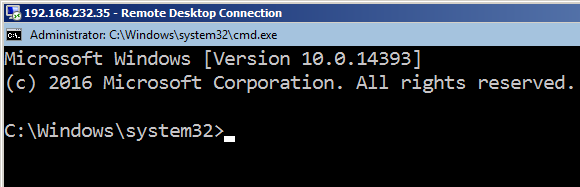
- A new command prompt window will be shown up.
VERIFY THE TERMINAL SESSION
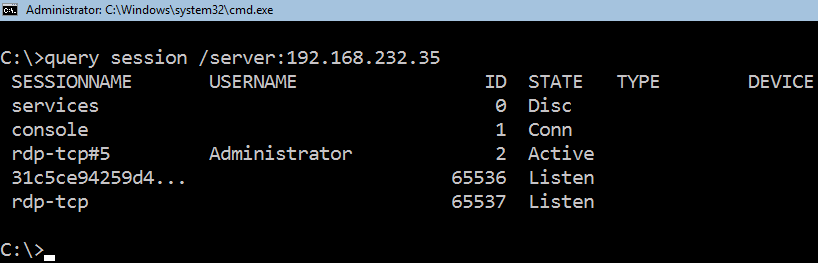
- We can use the below command to list the terminal connections.
Syntax: query session /server: <servername or IP>
Example: query session /server:192.168.232.35
VIDEO
Thanks for reading this blog. We hope it was useful for you to learned about accessing windows server core through RDP.

Loges